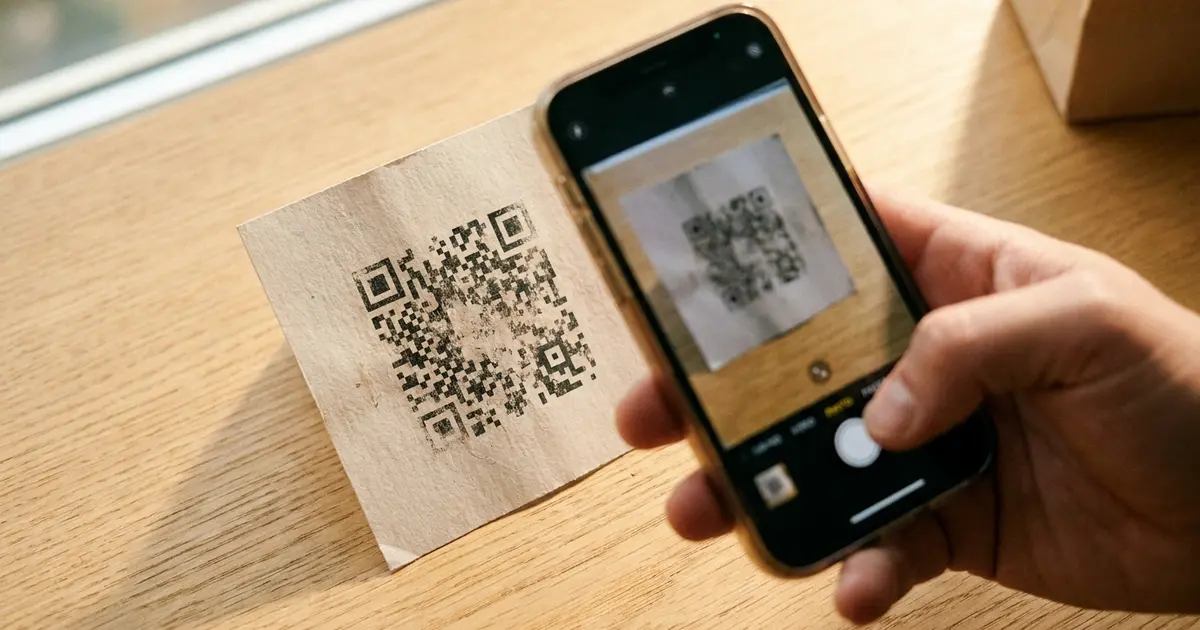
A QR code fails to scan for one of five reasons: the contrast between dark and light modules is too low, the code is too small for the scanning distance, a logo covers too much data, the surface is physically damaged, or the destination link is dead. Each has a specific fix. This guide covers all five, with a pre-print testing checklist at the end.
What causes a QR code to fail?
Every QR code encodes data as a grid of dark and light squares (called modules). A phone camera reads that grid by detecting the boundaries between dark and light areas, locating the three corner markers, then decoding the pattern mathematically.
Scanning breaks when any step in that chain fails. The camera can't distinguish modules (contrast problem). The lens can't resolve individual squares (size problem). Too many modules are unreadable (damage or logo coverage problem). Or the code decodes fine but points to a dead URL (link problem).
Is your contrast too low?
The most frequent cause. QR scanners need a clear difference between dark modules and the lighter background. When that difference shrinks, cameras struggle to tell where one module ends and another begins.
The ISO 18004 QR standard requires dark-on-light orientation. Industry testing puts the minimum usable contrast ratio at 4:1 between foreground modules and background. Below that, failure rates climb fast. A ratio of 7:1 or higher works reliably in all conditions, including low light and scanning at angles.
Common contrast mistakes:
- Light-gray modules on a white background
- Pastel or neon module colors with insufficient luminance difference
- Inverting the code (light modules on a dark background)
- Printing on colored or textured paper without adjusting module color
Keep your dark modules genuinely dark and your background genuinely light. If you want branded colors, test first. The full color and contrast guide covers the exact combinations that scan and the ones that break.
Is the code too small for the scan distance?
The industry standard is the 10:1 rule: the QR code's shortest side should be at least one-tenth of the expected scanning distance.
Practical minimums by use case:
| Use case | Typical scan distance | Minimum code size |
|---|---|---|
| Business card (in hand) | 15-25 cm | 2 cm (0.8 in) |
| Product label | 20-40 cm | 2.5 cm (1 in) |
| Table tent or flyer | 30-60 cm | 3-4 cm |
| Poster (wall-mounted) | 1-2 m | 10-20 cm |
| Banner or billboard | 5-10 m | 50-100 cm |
A code that looks scannable on your laptop screen may fail at the actual distance people encounter it. Measure the real-world distance, divide by 10, and size your code to at least that dimension.
Data density matters too. A code encoding a 200-character URL has far more modules than one encoding a 30-character URL. Same overall code size, smaller squares. If your URL is long, a dynamic redirect solves this: it encodes a fixed short URL regardless of the final destination.
Does the logo cover too much data?
QR codes have built-in error correction that lets them survive partial damage. The four levels recover different amounts of data:
- Level L: recovers up to 7% of damaged data
- Level M: up to 15%
- Level Q: up to 25%
- Level H: up to 30%
When a logo overlays part of the code, it blocks those modules permanently. Most overlay-style generators paste the logo on top of the finished code and rely on error correction to compensate. Hard ceiling: at level H, you can cover roughly 30% of the data area. Go past that and scanning fails.
The practical safe zone for overlay logos is about 10-15% of the total code area with level H error correction. Beyond that, scan rates degrade. The logo size guide explains the exact limits and what happens when you push past them.
Physical damage and outdoor wear
Printed QR codes live outdoors, on packaging, in pockets. They get scratched.
What goes wrong:
- UV fading on outdoor signage. After a few months in direct sun, dark modules lighten until the contrast ratio drops below what cameras can read.
- Scratches or abrasion on product packaging
- Creasing or folding through the code area
- Moisture warping the printed surface
- Curved surfaces (bottles, tubes) distort the grid at certain scan angles
Error correction helps here too. A code at level H tolerates scratches across up to 30% of its area. But if the damage hits a corner marker (one of the three large squares), scanning almost always fails regardless of error correction, because scanners use those markers to orient the grid.
For anything going outdoors or onto packaging, use level H. Laminate codes exposed to weather. Avoid placing them across fold lines or seams. Bottles and tubes need a test at the actual curvature before you commit to a full print run.
Did the destination link break?
Sometimes the code scans fine. The camera reads the data, decodes the URL, opens the browser. And the page is gone.
Common causes: the domain expired, the page path changed without a redirect, a QR generator's shortened URL timed out (typical of free-tier services), or the linked file got moved. This failure has nothing to do with the code itself. Renew the domain, set up a 301 redirect, or use a dynamic QR code whose destination you can update without reprinting.
How to test a QR code before you print 10,000 copies
A five-step pre-print checklist:
-
Print a proof at actual size. Screen-scanning tests nothing about real-world performance. Print one copy at the exact dimensions it will ship.
-
Scan at the real distance. Hold your phone at the distance a customer actually encounters the code. Not closer.
-
Test on three or more devices. At minimum: one recent iPhone, one recent Android phone, and one phone that is 3-4 years old. Older cameras have weaker autofocus and lower resolution.
-
Test in bad light. Scan under fluorescent lighting, dim ambient light, and direct sunlight with glare on the surface. If it fails any of these, your contrast is marginal.
-
Try at an angle. Scan from 30-45 degrees off-center. Real users rarely hold their phone perfectly perpendicular to the code.
If the code passes all five checks, it will survive production. If it fails any single check, fix the root cause (usually contrast or size) rather than hoping real-world conditions will be kinder than your test.
What QRLfy does differently
QRLfy tests every generated code at five decode levels before you download it: native resolution, 512px downscale, 256px downscale, and two levels of Gaussian blur that simulate distance and camera shake. All five levels must pass.
This was validated across 196 brand logos. Every one passed at all five decode levels with a 100% scan rate.
The generator also enforces contrast thresholds automatically (it detects ink colors from your uploaded logo and warns if the combination is too low-contrast) and sets error correction to the appropriate level for the selected logo scale.
The result: codes that scan on the first try, in the field, at distance, even when printed small. Generate a code and test it yourself.
FAQ
Can a QR code be too complex to scan?
Yes. A code encoding a long URL or large vCard has more modules in the same space. If the overall code size stays the same, each module shrinks. At some point individual modules become too small for a camera to resolve. The fix: shorten the encoded data, increase the code size, or use a dynamic redirect (which encodes a short fixed URL regardless of the destination length).
Do QR codes work in low light?
They can, but low light amplifies contrast problems. A code that barely passes the 4:1 contrast threshold in daylight will often fail indoors under dim lighting. Design for 7:1 or higher if the code will be scanned in restaurants, warehouses, or event venues.
Why does my QR code scan on one phone but not another?
Camera quality and autofocus speed vary widely. A 2023 budget Android with a fixed-focus lens will choke on codes that a current iPhone reads instantly. Test on at least three devices before print, and include one older or budget phone.
Can a scratched or partially covered QR code still work?
At level H, up to 30% of the data area can be damaged and the code still scans. Corner markers are the exception: damage there kills scanning regardless of error correction.
Does the file format (PNG vs SVG) affect scannability?
Not directly, but it affects print quality. PNG is raster, which means scaling it up past its native resolution introduces blur between modules. SVG is vector, so it stays crisp at any print size. For large-format printing (posters, banners), SVG avoids a size-related scan failure that has nothing to do with the code's design.